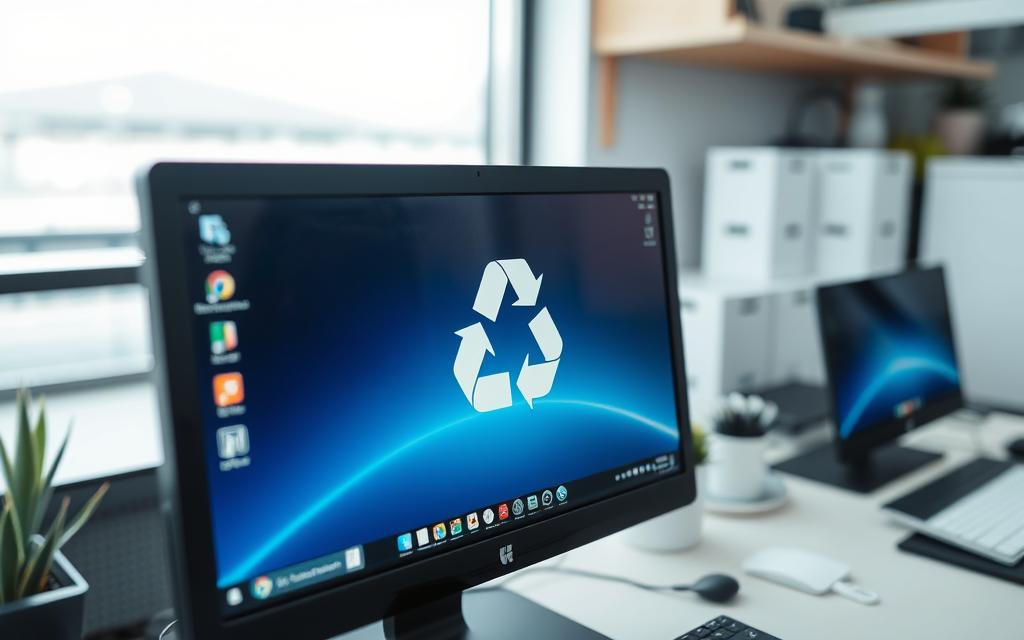
The Recycle Bin is key for the Windows operating system. It holds deleted files and folders temporarily. Knowing how to find the Recycle Bin is vital, especially if its icon disappears from the desktop. This guide demonstrates easy steps for accessing the Recycle Bin in Windows 10 or 11. You’ll learn how to quickly find and manage your deleted items.
Access the Windows Recycle Bin via File Explorer using the shortcut Win + E.
Open the Recycle Bin from the Run Command by pressing Win + R and typing explorer.exe shell:RecycleBinFolder.
Restore the Recycle Bin icon using Settings through Start > Settings > Personalization > Themes > Desktop icon settings.
Pin the Recycle Bin to your Start menu or taskbar for quicker access.
Explore data recovery options if files are permanently deleted from the Recycle Bin.
Understanding the Recycle Bin
The Recycle Bin is a key part of the Windows operating system. It holds deleted files and folders temporarily. This lets users get back files they may have accidentally deleted. It’s a very helpful tool, making sure no important data is lost by mistake.
What is the Recycle Bin?
The Recycle Bin acts as a safety net for your data. Almost all Windows computers have it. It keeps files safe until you decide to remove them forever. Items don’t get erased right away. Instead, they sit in the Recycle Bin. Here, they only take up a small part of your hard drive, between 5% and 10%.
Importance of the Recycle Bin in Windows
The Recycle Bin is more than just for holding files temporarily. It gives users a second chance to retrieve important files they might delete by accident. Even though recovery through some apps is limited, the Recycle Bin is still very useful. Most users clean it out to make more room on their computers.
About 80% of people delete files by dragging them to the Recycle Bin. This shows it’s easy to use. Also, it helps keep personal data secure. Only those with special permission can see what’s inside, safeguarding privacy.
How to Find the Recycle Bin on Your Desktop
Knowing where the Recycle Bin icon is on a Windows desktop is key. It’s where deleted files are kept before final removal. Usually, you can find the Recycle Bin in the desktop’s upper-left corner. This position makes it easy to recover files quickly. Just double-click the icon to see or bring back your deleted items.
Finding the Recycle Bin on the desktop is normally easy. It’s often in the top left corner for fast access. If you can’t see the Recycle Bin there, it might have been moved or hidden by accident. You can check the desktop’s customization settings to fix this issue.
What to Do If the Icon is Missing
If you can’t find the Recycle Bin icon, don’t worry. Start by right-clicking on the desktop and choose “Personalise.” Then, head to “Themes” and select “Desktop icon settings.” Make sure the Recycle Bin is checked. If it’s still missing, look into visibility settings or if tablet mode is on.
For help with getting the Recycle Bin back and learning why it’s important, look at this detailed guide. It covers various ways to find the Recycle Bin. Plus, it offers advice for recovering files efficiently.
Different Methods to Access the Recycle Bin
Finding the Recycle Bin in Windows is key for good file management. Sometimes, getting to it isn’t straightforward, especially if you can’t see its icon on the desktop. Knowing different ways to access it helps you swiftly get back or organise deleted files. Here, we cover two main ways: through File Explorer and by searching for the Recycle Bin.
Using File Explorer to Find the Recycle Bin
A simple way to reach the Recycle Bin is by accessing Recycle Bin through File Explorer. This is easy on Windows 10 and 11. Just follow these steps:
Press Win + E to open File Explorer.
Put Recycle Bin in the address bar and hit Enter.
This method takes you to the Recycle Bin fast, even if you can’t see its icon. Another handy tip is to add the Recycle Bin to your Quick Access menu. It makes getting to it even quicker.
Accessing the Recycle Bin Through Search
You can also find the Recycle Bin by using search for Recycle Bin from the taskbar. Here’s what to do:
Hit the search icon or just start typing in the taskbar.
Type Recycle Bin and pick it from the search results.
This method gets you into the Recycle Bin straight away. Plus, it can help you find other important files you might need. These ways of accessing the Recycle Bin are very useful. They show how user-friendly Windows is for managing deleted files.
Method
Description
Speed
File Explorer
Type “Recycle Bin” in the address bar.
Fast
Search
Look for “Recycle Bin” using the taskbar.
Very Fast
Using these ways helps you recover data easily. It keeps your file management sharp in the Windows setup.
How do you find the recycle bin?
Finding the Recycle Bin on Windows is pretty straightforward. You can use the Run command or PowerShell for quick access. These methods make getting to this important tool easier and improve your experience.
Opening the Recycle Bin via the Run Command
To find the Recycle Bin quickly, use the Run command. Simply press Win + R on your keyboard. This opens a window where you can type. Just type explorer.exe shell:RecycleBinFolder and press Enter. You’ll see the Recycle Bin pop up, ready for you to manage your deleted files with no trouble.
Utilising Windows PowerShell to Access the Recycle Bin
If you like using command lines, PowerShell is another way to get to the Recycle Bin. First, search for PowerShell in your start menu and open it. Then, type the command start shell:RecycleBinFolder in the PowerShell window. This will take you straight to the Recycle Bin, where you can check and restore files as needed.
Restoring the Recycle Bin Icon on Your Desktop
Many Windows users find the Recycle Bin icon missing from their desktop. Luckily, you can get it back by changing some settings. This lets you tweak which desktop icons you see, based on what you like and need.
Steps to Make the Icon Visible Again
To bring back the Recycle Bin icon, just follow these easy steps:
Right-click on the desktop and select Personalise.
Click on Themes.
Select Desktop icon settings from the choices.
In the Desktop Icon Settings window, tick the box for Recycle Bin.
Click Apply and then OK to save your change.
Customising Desktop Icon Settings
Adjusting desktop icon settings does more than just bring back the Recycle Bin icon. It also lets you choose what icons to show, for a neater and more organised desktop. This feature improves icon clarity, making your computer truly yours.
Customisation Option
Description
Show Recycle Bin
Puts the Recycle Bin icon back on your desktop for easy use.
Show Computer
Lets you see the Computer icon for quick file and storage checks.
Show User’s Files
Gives a direct link to your documents and folders.
Show Network
Makes connecting to network places faster.
Show Control Panel
Provides a shortcut to tweak your computer settings.
How to Empty the Recycle Bin in Windows
It’s important to keep your Recycle Bin empty to ensure your Windows computer runs well. Emptying the Recycle Bin regularly frees up space and reduces clutter. There are easy methods to remove deleted files.
Simple Methods to Clear the Recycle Bin
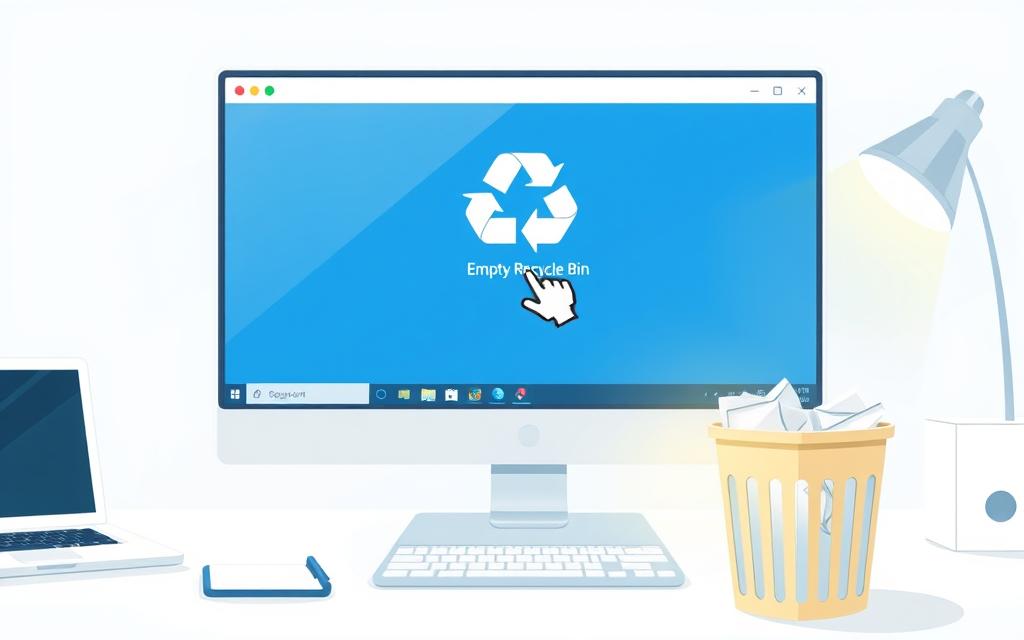
Emptying the Recycle Bin is easy and can be done in several ways. You can right-click the Recycle Bin icon and choose “Empty Recycle Bin.” There’s also an option in the manage menu for the same action. For those who like using commands, rd /s %systemdrive%\$Recycle.bin or PowerShell scripts like $Shell = New-Object -ComObject Shell.Application work well. Plus, PowerShell cmdlets like Clear-RecycleBin -Force allow you to clear files with one command.
Setting Schedules for Emptying the Recycle Bin
If you prefer automating tasks, scheduling Recycle Bin clear-outs is a great idea. You can use Windows Task Scheduler to set up regular script executions. This helps in keeping your system clean without manual intervention. By doing this, your computer stays efficient and avoids getting too full.
Recovering Files from the Recycle Bin
Getting back deleted items from the Recycle Bin is easy and straightforward. Windows 10 has built-in features that help you retrieve items you’ve deleted by accident. Just open the Recycle Bin, pick the files you need back, and right-click to select “Restore”. This method works well for files deleted within the last 30 days.
Restoring Deleted Files Easily
For a lot of people, the Recycle Bin is the first place to look for lost data. It’s a quick way to get back important files you didn’t mean to delete. There are several ways to recover your files, including:
Using Windows File History for automatic backups.
Turning to cloud storage like OneDrive, Google Drive, or Dropbox, which might keep deleted files for a while.
Trying out external recovery software like EaseUS Data Recovery Wizard, which has a great success rate and positive reviews.
When You Can’t Find Needed Files
Sometimes, files might not show up in the Recycle Bin. This usually means they’ve been permanently deleted. If you’re in this situation, don’t worry. There are special tools designed to help. Programs like Recuva or Disk Drill are good for getting back lost files, even from damaged storage. To improve your chances of recovery, remember to:
Act quickly to prevent new data from overwriting the old.
Make regular backups of your most important files to reduce future losses.
Choose reliable recovery software that comes highly recommended.
Conclusion
This guide has shown how crucial the Recycle Bin is in Windows 10 and 11. It protects important files, letting users get back items they deleted by mistake. It’s always on the desktop and stores things temporarily. This makes it great for keeping your digital space tidy.
It’s easy to manage your data with the ways to access the Recycle Bin we talked about. You can use File Explorer, the Run command, or PowerShell to find it fast. This is handy if the icon isn’t on your desktop. Knowing these methods makes you more productive and helps you get back files quickly.
The Recycle Bin is really important. It not only saves deleted files but also helps free up storage by managing what you throw away. Using the Recycle Bin well leads to better data management. This makes using your computer easier and smoother.
FAQ
How do I find the Recycle Bin if it’s missing from my desktop?
To get the Recycle Bin back, go to “Settings > Personalisation > Themes > Desktop icon settings.” Tick the Recycle Bin box. Then, apply to show it on your desktop again.
What steps do I follow to access the Recycle Bin using File Explorer?
Open File Explorer with Win + E. Enter “recycle bin” in the address bar. This gives you quick access to deleted files.
Can I recover files from the Recycle Bin if they were accidentally deleted?
Yes, restoring deleted files is simple. Open the Recycle Bin, choose the files you want, then right-click and select “Restore.” They’ll move back to where they were.
What should I do if I can’t find my deleted files in the Recycle Bin?
If deleted files aren’t in the Recycle Bin, they may be gone for good. However, tools like EaseUS Data Recovery Wizard or MiniTool Power Data Recovery might recover them.
How can I empty the Recycle Bin to free up storage space?
Right-click the Recycle Bin icon and choose “Empty Recycle Bin” to clear it. This action deletes the files forever and creates more space.
Is there a way to schedule emptying the Recycle Bin automatically?
Windows can automatically clear the Recycle Bin for you. Set it up in the settings or with scripts to keep your system clean.
How do I access the Recycle Bin using the Run command?
Use Win + R for the Run dialogue. Type “explorer.exe shell:RecycleBinFolder” and press Enter. This opens the Recycle Bin right away.
Can I use PowerShell to access the Recycle Bin?
Indeed, you can access the Recycle Bin via PowerShell. Open it and execute “start shell:RecycleBinFolder.” It’s a quick way to open the Recycle Bin.
What is the significance of the Recycle Bin in Windows?
The Recycle Bin is key for Windows users. It offers a backup option to recover files mistakenly deleted, improving data management and security.
Tesco is revolutionizing plastic waste management in the UK with innovative recycling bins designed to simplify the recycling process for customers. The supermarket has set…
Polystyrene is a common plastic, with 15.6 million tons made every year. It’s used in food packaging, insulation, and as protective cushioning. Though it can…
We use cookies on our website to give you the most relevant experience by remembering your preferences and repeat visits. By clicking “Accept”, you consent to the use of ALL the cookies.
This website uses cookies to improve your experience while you navigate through the website. Out of these cookies, the cookies that are categorized as necessary are stored on your browser as they are essential for the working of basic functionalities of the website. We also use third-party cookies that help us analyze and understand how you use this website. These cookies will be stored in your browser only with your consent. You also have the option to opt-out of these cookies. But opting out of some of these cookies may have an effect on your browsing experience.
Necessary cookies are absolutely essential for the website to function properly. This category only includes cookies that ensures basic functionalities and security features of the website. These cookies do not store any personal information.
Any cookies that may not be particularly necessary for the website to function and is used specifically to collect user personal data via analytics, ads, other embedded contents are termed as non-necessary cookies. It is mandatory to procure user consent prior to running these cookies on your website.
We use cookies to ensure that we give you the best experience on our website. If you continue to use this site we will assume that you are happy with it.