The Recycle Bin is key for managing deleted files on various devices. In this article, we’ll cover how to find and use the Recycle Bin on Android, Windows, and macOS. It helps users recover lost files easily, keeping important data safe. With smartphones now having up to 512GB of storage, understanding how to access the Recycle Bin on Android is vital. On Android, deleted items stay in the bin for 30 days, making timely recovery important.
Accessing the Recycle Bin on Windows is easy. It’s usually found in the upper-left corner of the Desktop. For recovering deleted files, tools like EaseUS Data Recovery Wizard are very helpful. This tool, trusted by billions since 2005, boasts a 99.7% recovery rate. If you need tips on managing deleted files, check out our guide that explains the Recycle Bin and file recovery methods in detail.
To learn more about the Recycle Bin, you can visit this useful resource. There you’ll find a detailed tutorial on recovery and file management strategies.
The recycle bin is vital in managing data on different devices. It acts as a backup for accidentally deleted files. Knowing what the recycle bin does helps users manage their files better.
What is the Recycle Bin?
It’s a special area on a device that holds deleted files temporarily. This feature lets users get back important files instead of losing them forever. Data stays in the recycle bin for a set time, like 30 days on Android devices. This gives you a chance to recover what you need. Most smartphones, including those from HONOR, have a recycle bin in their file managers. This makes it easy to get back deleted stuff.
The Purpose of a Recycle Bin
The recycle bin protects users from losing files by mistake. It gives you time to think and get files back before they’re gone for good. This helps keep your data safe and organized. Apps like Dumpster and Recycle Master on Android offer extra protection. They make sure you can retrieve deleted files easily. Understanding the recycle bin’s role shows its worth in keeping data tidy and safe.
Many Android devices have a handy Recycle Bin feature in their default file manager. It’s great for managing deleted files. There are different ways to get back deleted items in various apps. Knowing where these options are can save you both time and annoyance.
Finding the Recycle Bin in Default File Managers
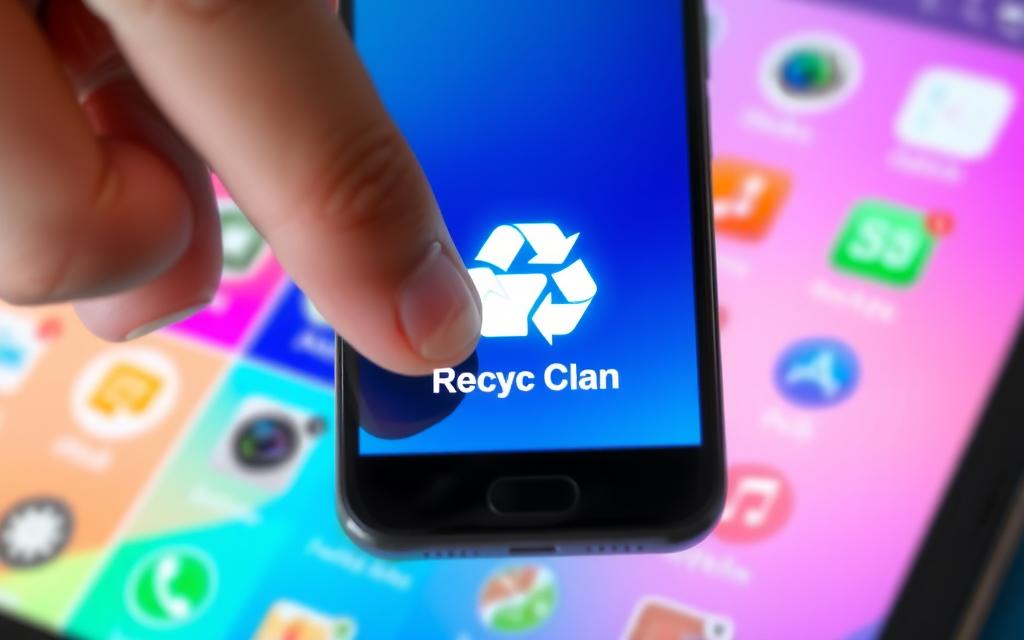
The primary tool for managing files on most Android devices is the default file manager. This often includes a Recycle Bin or Trash folder. To access it, users generally:
Open the default file manager app.
Look for the “Trash” or “Recently Deleted” folder.
Select the files you wish to recover.
Tap the restore option to get the files back.
Using this method, users can get back deleted files stored for up to 30 days. After that, files might be gone for good.
Accessing Recycle Bin through Individual Apps
Aside from the default file manager, many apps have their own recycle bin. For example:
Google Photos: Find deleted photos and videos in Trash, kept for 30 days.
Gmail: Emails in Trash stay for a set time before permanent deletion.
Gallery App on Samsung devices: Has a trash option for deleted media, sometimes needs to be turned on.
Different apps may have special ways to recover files. So, users should check out these apps to know how to bring back their stuff. If you can’t get your files back the usual way, tools like UltFone Android Data Recovery can help retrieve permanently deleted items.
App/Method
Recycle Bin Storage Duration
Recovery Steps
Default File Manager
30 days
Open app, find Trash, restore files
Google Photos
30 days
Open app, access Trash, recover images/videos
Gmail
30 days
Open app, go to Trash, restore emails
Samsung Gallery
30 days
Open app, enable trash, recover media
UltFone Android Data Recovery
N/A
Install software, select files, recover
How to Access Recycle Bin on Windows and macOS
Both Windows and macOS make it easy to manage deleted files. They use the Recycle Bin and Trash. Knowing how to use these features is key. It helps recover files and stops important data from being lost for good.
Accessing the Recycle Bin on Windows
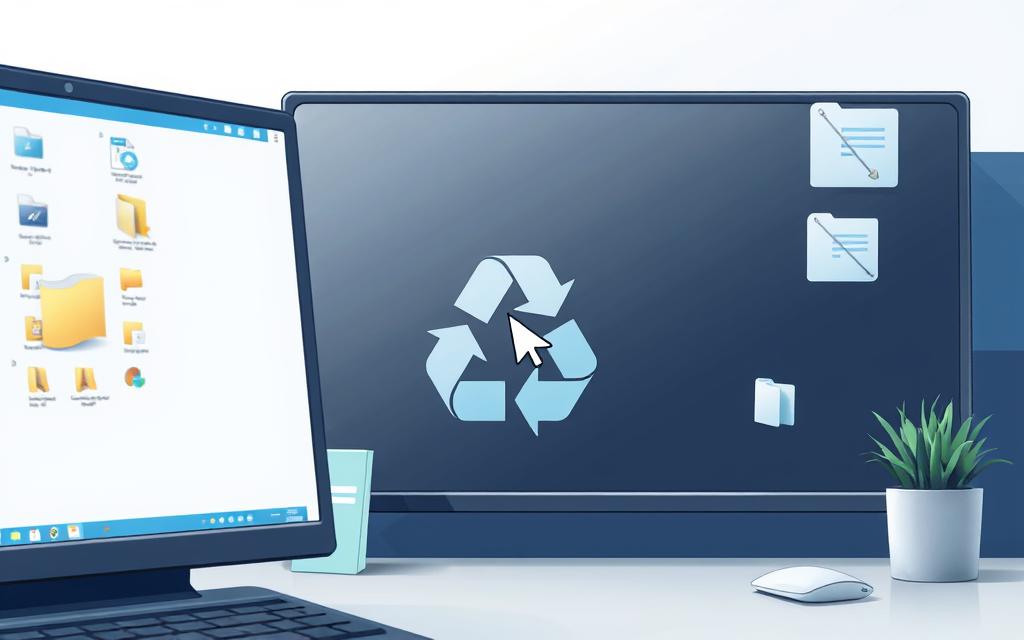
Getting to the Recycle Bin on Windows is easy. Look for its icon on your desktop. A double-click opens it, showing files you’ve deleted recently. You can choose files to bring back to their original spots.
Every drive has its own Recycle Bin folder. You can find it in the system folder at the drive’s root. To up your chances of getting files back, don’t use the drive after deleting data.
Locating the Trash on macOS
The Trash on macOS holds deleted files temporarily, similar to Windows’ Recycle Bin. There are a few ways to get to it. The quickest is clicking the Trash icon in the Dock. Or, you can use “Command+Shift+G” for a direct route.
To bring back a file, right-click and pick “Put Back.” Or, use “Cmd+A” to choose everything and restore in bulk. Need more help? Deleted files no longer in the Trash might be retrieved with special software. Or you could use Time Machine if you have backups. Check out more details at this link.
Recovering Deleted Files from the Recycle Bin
Getting back deleted files depends on your device. You can get back lost files by following some steps for Android, Windows, and macOS. It’s important to act fast to increase your chances of getting your files back.
Steps to Restore Files on Android
To get files back on Android, check the default file manager or the app’s Trash. Follow these steps:
Open the default file manager or relevant application.
Go to the Trash or Recycle Bin section.
Pick the files you want to get back.
Do what the on-screen instructions say to get your files back.
It’s key to act quickly as deleted files might not stay in the Trash for long.
How to Retrieve Files on Windows and macOS
Getting files back on Windows is easy:
Go to the Recycle Bin on your desktop.
Pick the files you want back.
Hit the “Restore” button.
Windows 10 has tools built-in that help get files back. If you’ve emptied the Recycle Bin, try tools like EaseUS Data Recovery Wizard, Recuva, or Disk Drill.
For macOS file retrieval, do this:
Open the Trash from the dock.
Choose the files you want back.
Drag them to the desktop or right-click and choose “Put Back.”
Cloud storage can also help keep your deleted files safe for a while, making it easier to get them back if deleted by accident.
Platform
Method
Recovery Tools
Android
Access Trash via File Manager
N/A
Windows
Restore from Recycle Bin
EaseUS, Recuva, Disk Drill
macOS
Restore from Trash
N/A
Conclusion
Knowing how to use the Recycle Bin well is key for a great experience on Android, Windows, and macOS. Learning the ways to get to the Recycle Bin helps you get back deleted files before they’re gone for good. This is true whether you’re dealing with your computer’s hard drive or an external device like a USB.
External hard drives have a secret folder called $RECYCLE.BIN that keeps deleted files. But, it’s hidden unless you change your system’s settings to see it. Just using the Recycle Bin might not be enough, especially when files get deleted from USB drives directly.
If you can’t get back deleted files the usual way, tools like Disk Drill and 4DDiG might help. They let you find lost files from many types of storage. Good file management means more than just deleting files. It’s also about how to use the Recycle Bin and keeping your data safe.
FAQ
What is the Recycle Bin?
The Recycle Bin keeps deleted files before they’re gone for good. It lets you undo a delete if you change your mind.
How can I access the Recycle Bin on Android devices?
On Android, find the Recycle Bin in the “My Files” app, under “Trash” or “Recently Deleted”. Some apps like Google Photos also have their own trash.
How do I recover deleted files on Windows?
To get files back on Windows, open the Recycle Bin on your desktop, pick the files, and click “Restore”.
What steps should I follow to retrieve files from macOS Trash?
For macOS, open Trash from the dock or Finder, select your files, and choose “Put Back” to restore them.
Are there limits to how long deleted files stay in the Recycle Bin or Trash?
Yes. Deleted files usually stay for about 30 days in the Recycle Bin or Trash. This period can be adjusted.
What should I do if I accidentally emptied my Recycle Bin or Trash?
If you empty the Recycle Bin or Trash, you might need special data recovery tools to get your files back.
How can I ensure I don’t lose important files in the future?
To avoid losing files, regularly back them up with cloud services or external drives. It’s a smart way to keep your data safe.
It’s important to dispose of used ink cartridges responsibly to protect the environment. Every year, over 1.3 billion ink cartridges are used worldwide. Sadly, only…
Today, it’s vital to recycle plastic shopping bags. Tons of plastic are dumped into landfills and oceans. Recycling helps reduce this waste and provides big…
We use cookies on our website to give you the most relevant experience by remembering your preferences and repeat visits. By clicking “Accept”, you consent to the use of ALL the cookies.
This website uses cookies to improve your experience while you navigate through the website. Out of these cookies, the cookies that are categorized as necessary are stored on your browser as they are essential for the working of basic functionalities of the website. We also use third-party cookies that help us analyze and understand how you use this website. These cookies will be stored in your browser only with your consent. You also have the option to opt-out of these cookies. But opting out of some of these cookies may have an effect on your browsing experience.
Necessary cookies are absolutely essential for the website to function properly. This category only includes cookies that ensures basic functionalities and security features of the website. These cookies do not store any personal information.
Any cookies that may not be particularly necessary for the website to function and is used specifically to collect user personal data via analytics, ads, other embedded contents are termed as non-necessary cookies. It is mandatory to procure user consent prior to running these cookies on your website.
We use cookies to ensure that we give you the best experience on our website. If you continue to use this site we will assume that you are happy with it.